

WordPress powers a huge share of the web, which makes it a constant target for automated attacks, credential stuffing and exploits against outdated plugins. The good news is that most compromises are preventable with disciplined, layered protection. This guide walks through 15 essential steps to strengthen WordPress security, from the basics every site needs to the server-level hardening that separates a well-run site from an easy target.
Key takeaways
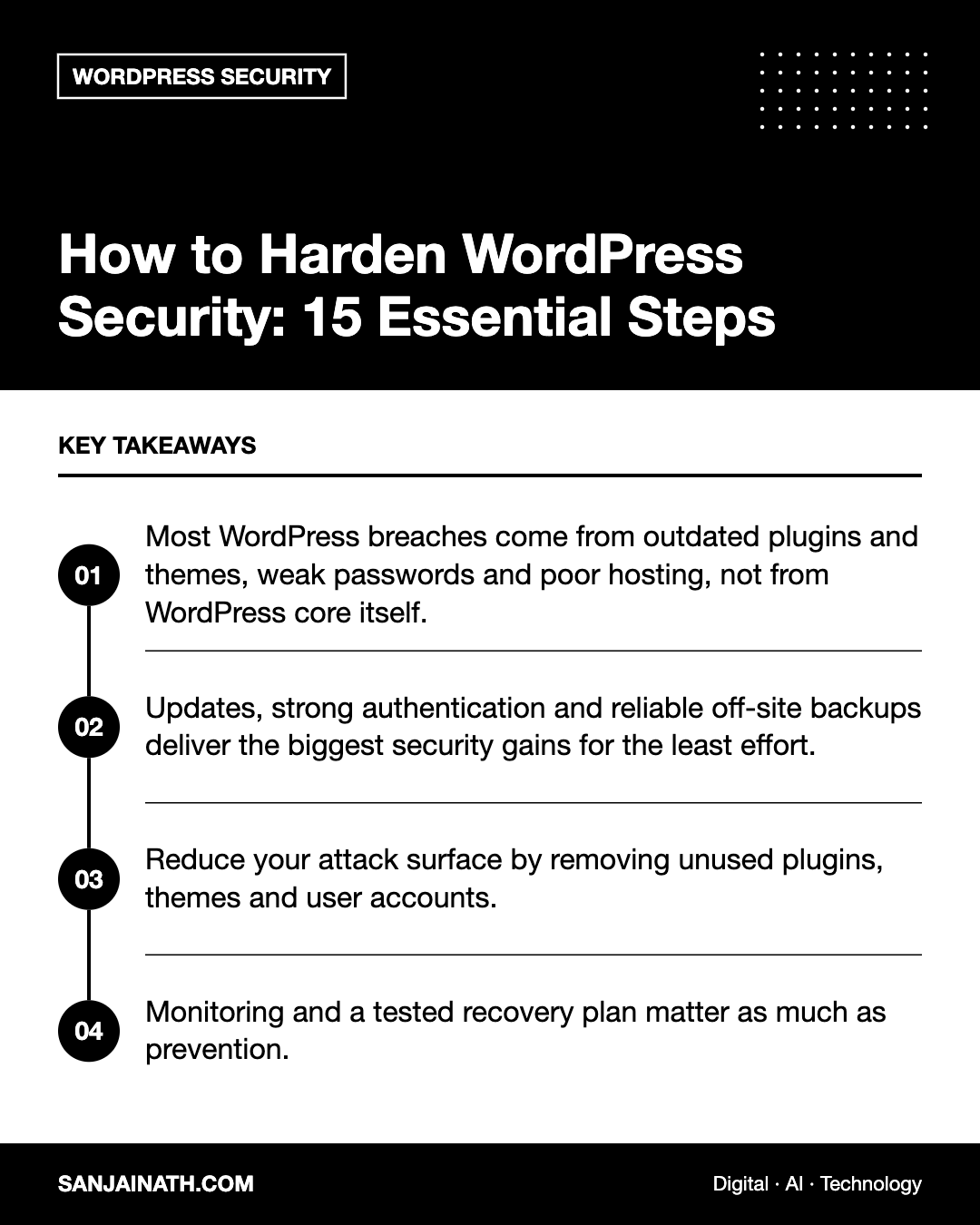
- Most WordPress breaches come from outdated plugins and themes, weak passwords and poor hosting, not from WordPress core itself.
- Updates, strong authentication and reliable off-site backups deliver the biggest security gains for the least effort.
- Reduce your attack surface by removing unused plugins, themes and user accounts.
- Monitoring and a tested recovery plan matter as much as prevention.
Why WordPress security needs a layered approach
No single plugin or setting makes a site secure. Attackers look for the weakest link: an abandoned plugin, a reused admin password, an exposed backup file or a misconfigured server. Layered defence means that if one control fails, another stops or limits the damage. Think of the steps below in four groups: accounts, software, server and recovery.
Securing accounts and access
1. Use strong, unique passwords everywhere
Every administrator, editor and hosting account should have a long, unique password generated by a password manager. Reused passwords are a leading cause of compromise because credentials leaked elsewhere are tested against WordPress logins automatically.
2. Enable two-factor authentication
Add two-factor authentication for all users with publishing or administrative rights. Authenticator apps or passkeys are preferable to SMS codes. This single step neutralises most password-based attacks.
3. Apply the principle of least privilege
Give each person the lowest role they need. Content writers rarely need to be administrators. Review user accounts quarterly and remove anyone who has left the organisation or no longer needs access, including former agencies and freelancers.
4. Limit login attempts and protect the login page
Rate-limit failed logins to slow brute-force attacks. Many security plugins and web application firewalls offer this, along with CAPTCHA-style challenges or IP-based restrictions for the admin area where practical.
Keeping software clean and current
5. Update WordPress core, plugins and themes promptly
Security fixes are only useful once installed. Enable automatic updates for minor core releases and trusted plugins, and schedule a regular window to review everything else. Test major updates on a staging site first if your site is business-critical.
6. Remove what you do not use
Deactivated plugins and themes can still contain exploitable files. Delete anything you are not actively using, keeping just one default theme as a fallback.
7. Choose plugins and themes carefully
Before installing, check when the plugin was last updated, whether it is compatible with your WordPress version, how responsive the developer is to support requests and whether it has a history of unresolved vulnerabilities. Never install nulled or pirated premium plugins, which frequently contain hidden malware.
8. Scan for malware and file changes
Use a reputable security scanner to check for known malware signatures and unexpected changes to core files. File integrity monitoring can alert you quickly if something is modified without your knowledge.
Hardening the server and configuration
9. Choose quality, security-focused hosting
Your host controls the environment your site runs on. Look for isolated accounts, current PHP versions, server-level firewalls, malware scanning, automatic backups and responsive support. For businesses in the UAE and GCC, also consider where data is stored if you handle customer information subject to local data protection rules.
10. Enforce HTTPS across the site
Install an SSL/TLS certificate, redirect all HTTP traffic to HTTPS and make sure the admin area is only accessible over encrypted connections. Consider enabling HTTP Strict Transport Security once everything works reliably over HTTPS.
11. Harden wp-config.php and file permissions
- Use unique authentication keys and salts.
- Disable the built-in file editor by adding DISALLOW_FILE_EDIT set to true, so attackers who gain admin access cannot edit theme or plugin code from the dashboard.
- Set sensible file permissions, typically 644 for files and 755 for directories, with tighter permissions for wp-config.php where your host supports it.
- Keep debug mode off on production sites so error messages do not leak information.
12. Deploy a web application firewall
A web application firewall filters malicious requests before they reach WordPress. Cloud-based firewalls can also absorb traffic spikes and block known bad bots, while plugin-based firewalls work at the application level. Many sites benefit from both.
13. Disable features you do not need
If you do not use XML-RPC for remote publishing or app integrations, disable it, as it is frequently abused for brute-force attempts. Turn off directory browsing and restrict access to sensitive files through server rules.
Preparing for recovery
14. Keep automated, off-site backups
Back up both files and the database on a schedule that matches how often your content changes. Store copies off-site, away from your hosting account, and keep several restore points. Most importantly, test a restore periodically; an untested backup is only a hope.
15. Monitor activity and have an incident plan
Activity logs show who changed what and when, which is invaluable when investigating suspicious behaviour. Uptime monitoring alerts you to outages that could signal an attack. Write a short incident plan covering who to contact, how to take the site offline if needed, how to restore from backup and how to reset credentials.
WordPress security checklist at a glance
| Area | Essential actions | Review frequency |
|---|---|---|
| Accounts | Unique passwords, 2FA, least privilege, login limits | Quarterly user review |
| Software | Updates, remove unused items, vetted plugins, scanning | Weekly |
| Server | Quality hosting, HTTPS, config hardening, firewall | Every few months |
| Recovery | Off-site backups, restore tests, logs, incident plan | Monthly restore test |
Frequently asked questions
Is WordPress secure enough for business websites?
Yes. WordPress core is actively maintained and receives regular security updates. Most problems arise from outdated extensions, weak credentials and poor hosting, all of which you can control.
Do I need a security plugin?
A reputable security plugin is a convenient way to add firewall rules, login protection, scanning and alerts. It should complement, not replace, good hosting, updates and backups.
Should I change the default login URL?
Changing the login URL can reduce automated bot traffic, but it is obscurity rather than true security. Strong passwords, two-factor authentication and rate limiting matter far more.
What should I do if my site is hacked?
Take the site offline or into maintenance mode, contact your host, restore a clean backup, update everything, reset all passwords and keys, and investigate how the attacker got in so you can close the gap.
Final thoughts
Strong WordPress security is less about any one tool and more about consistent habits. Keep software updated, lock down accounts, harden the server, and make sure you can recover quickly if something goes wrong. Work through these 15 steps once, then build them into a regular maintenance routine, and your site will be a far harder target than the vast majority of those attackers scan every day.