
Elementor makes it remarkably easy to design attractive WordPress pages without code, but that convenience can come at a cost. Heavy page structures, too many add-ons, oversized images and unoptimised scripts can leave Elementor sites feeling sluggish, which hurts user experience, conversions and search visibility. The good news is that Elementor performance problems are usually fixable with a methodical approach, and a well-built Elementor site can be genuinely fast.
Key takeaways
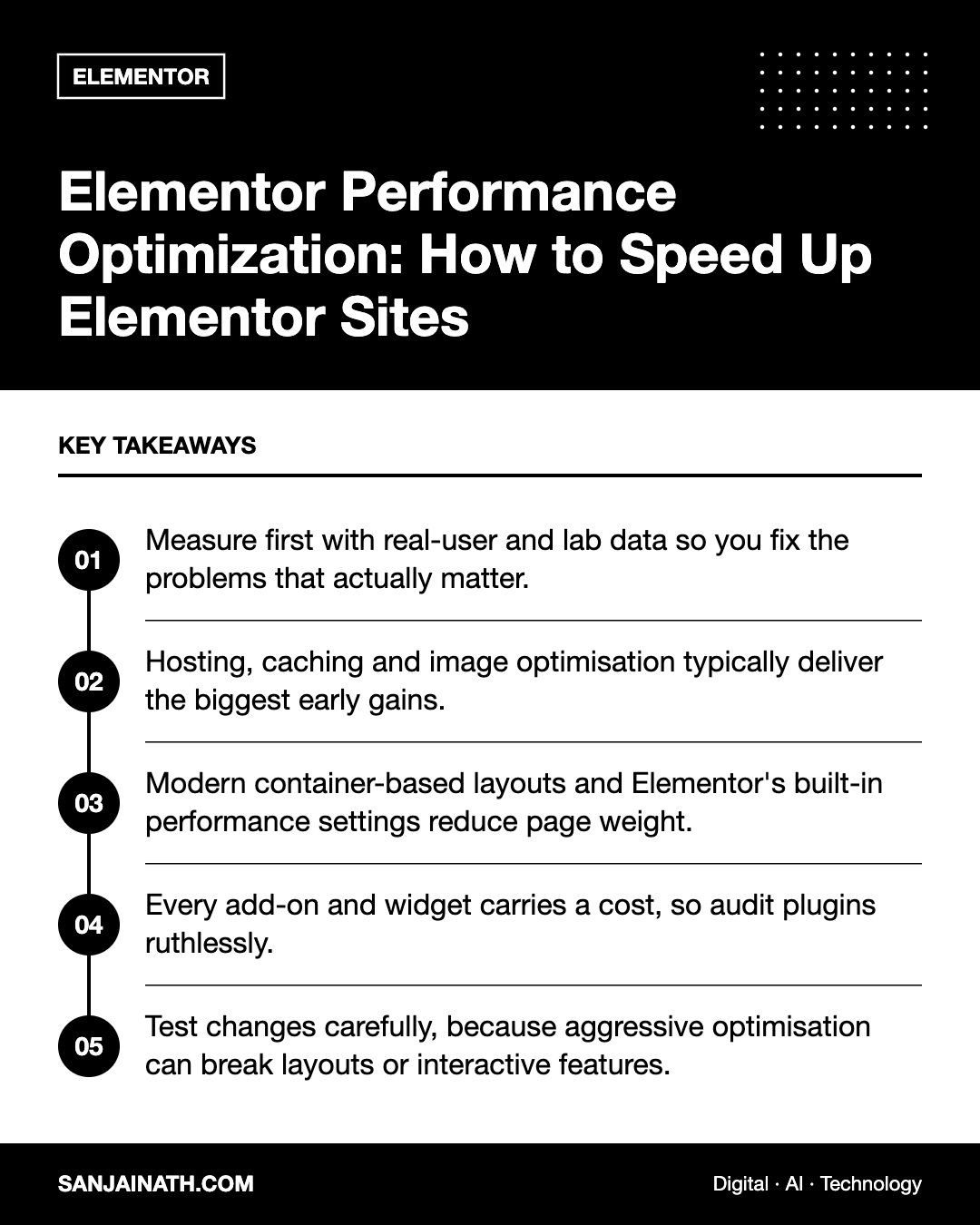
- Measure first with real-user and lab data so you fix the problems that actually matter.
- Hosting, caching and image optimisation typically deliver the biggest early gains.
- Modern container-based layouts and Elementor’s built-in performance settings reduce page weight.
- Every add-on and widget carries a cost, so audit plugins ruthlessly.
- Test changes carefully, because aggressive optimisation can break layouts or interactive features.
Why Elementor sites can become slow
Page builders generate the HTML, CSS and JavaScript needed to render your design. The more sections, nested columns, widgets, animations and third-party add-ons you use, the more code the browser has to download and process. Common culprits include:
- Deeply nested layouts built with older section-and-column structures.
- Multiple add-on packs installed for just one or two widgets each.
- Large, uncompressed hero images and background videos.
- Several Google Fonts families and weights, plus icon libraries loaded on every page.
- Sliders, carousels, popups and animations that load heavy scripts.
- Budget shared hosting that struggles with dynamic WordPress requests.
Step 1: Measure Elementor performance before changing anything
Start by establishing a baseline. Use tools such as PageSpeed Insights, which combines lab testing with real-user Core Web Vitals data where available, along with browser developer tools and a waterfall testing tool to see what loads and in what order.
Metrics to focus on
| Metric | What it reflects | Typical Elementor causes |
|---|---|---|
| Largest Contentful Paint (LCP) | How quickly the main content appears | Heavy hero images, slow server response, render-blocking CSS and fonts |
| Interaction to Next Paint (INP) | How responsive the page feels to taps and clicks | Excessive JavaScript from widgets, add-ons and tracking scripts |
| Cumulative Layout Shift (CLS) | How visually stable the page is while loading | Images without dimensions, late-loading fonts, injected banners |
| Time to First Byte (TTFB) | How quickly the server responds | Weak hosting, no page caching, slow database queries |
Test your most important templates, such as the home page, a key service or product page and a blog post, on mobile as well as desktop. Record the results so you can compare after each change.
Step 2: Fix the foundations
Choose capable hosting
No amount of front-end tuning can compensate for a slow server. Look for hosting with a current PHP version, server-level caching, adequate memory, solid-state storage and, ideally, data centres close to your audience. If most visitors are in the UAE or wider GCC, a host or content delivery network with nearby points of presence can noticeably reduce latency.
Enable page caching and a CDN
Page caching serves pre-built HTML instead of generating each page on every visit. Use your host’s caching or a reputable caching plugin, and pair it with a content delivery network to serve static assets from locations near your visitors.
Optimise images
- Resize images to the largest size they will actually display.
- Serve modern formats such as WebP or AVIF where supported.
- Compress images before or during upload.
- Lazy-load images below the fold, but do not lazy-load the main hero image, as this delays LCP.
- Replace background videos with a static image on mobile, or remove them entirely if they add little value.
Step 3: Use Elementor’s own performance features
Elementor has introduced a range of performance-focused options over time, typically found in its settings under features or performance. Names and defaults change between versions, so review what is available in your installation. Options commonly include:
- Optimised DOM output, which reduces unnecessary wrapper elements.
- Improved asset loading, which loads widget scripts and styles only where they are used.
- Improved CSS loading, which can inline or defer CSS more efficiently.
- Lazy loading for background images.
- Font and icon loading options, such as loading Google Fonts locally or using inline icons.
Rebuild key pages with containers
Elementor’s Flexbox and Grid container layouts generally produce leaner markup than older nested section and column structures. For your most important pages, consider converting or rebuilding layouts with containers. It takes time, but it can simplify both the page structure and future maintenance.
Step 4: Reduce plugins, add-ons and scripts
Audit every plugin, and ask whether each one is essential. Add-on packs for Elementor are a frequent source of bloat, particularly when several are installed for a handful of widgets.
- List every widget used across the site and which add-on provides it.
- Replace add-on widgets with native Elementor widgets where possible.
- Disable unused widgets within add-on settings if the plugin allows it.
- Uninstall add-ons that are no longer needed.
- Review third-party scripts such as chat widgets, heatmaps and marketing tags, loading them only where required or after user interaction.
Simplify fonts and icons
Limit yourself to one or two font families and only the weights you actually use. Host fonts locally where practical and use font-display settings that avoid invisible text. If you rely on only a few icons, avoid loading entire icon libraries on every page.
Step 5: Optimise CSS and JavaScript carefully
Performance plugins can minify files, remove unused CSS, defer or delay JavaScript and preload critical resources. These techniques can make a big difference, but they are also the most likely to break menus, sliders, forms or popups. Apply them one at a time, test thoroughly on a staging site and exclude scripts that must load immediately.
Step 6: Keep your site lean over time
- Keep WordPress, Elementor and plugins updated, as updates often include performance improvements.
- Clean up post revisions, expired transients and unused media periodically.
- Regenerate Elementor CSS files after major changes if styles appear outdated.
- Build new pages with performance in mind rather than optimising afterwards.
- Re-test Core Web Vitals after every significant design change or new plugin.
Frequently asked questions
Is Elementor bad for site speed?
Not inherently. Elementor adds some overhead compared with hand-coded themes, but most slow Elementor sites suffer from poor hosting, heavy images, excessive add-ons and complex layouts, all of which can be improved.
What is the quickest way to improve Elementor performance?
Usually a combination of better hosting, page caching, a CDN and image optimisation. These foundations often deliver the most noticeable gains with the least risk.
Should I switch from sections to containers?
For new builds, containers are generally the better choice. For existing sites, prioritise converting high-traffic templates, and test carefully because conversions can change spacing and responsive behaviour.
Which caching plugin works best with Elementor?
Several reputable caching plugins work well with Elementor. Choose one that suits your host, as some hosts provide their own caching and recommend against adding another layer.
Final thoughts
Strong Elementor performance comes from the same principles as any fast website: a solid server, efficient caching, optimised media and a lean page structure. Measure first, fix foundations, take advantage of Elementor’s built-in optimisations, prune add-ons and apply advanced tweaks carefully. With that discipline, you can keep the design freedom Elementor offers while delivering the speed your visitors and search engines expect.