

Google Analytics 4 is built around a simple idea: everything a user does is an event. Page views, scrolls, clicks, form submissions and purchases are all recorded the same way, as named events with optional parameters that add detail. Once you understand how GA4 events work and how to mark the important ones as conversions, you can measure what genuinely matters to your business instead of drowning in default reports.
Key takeaways
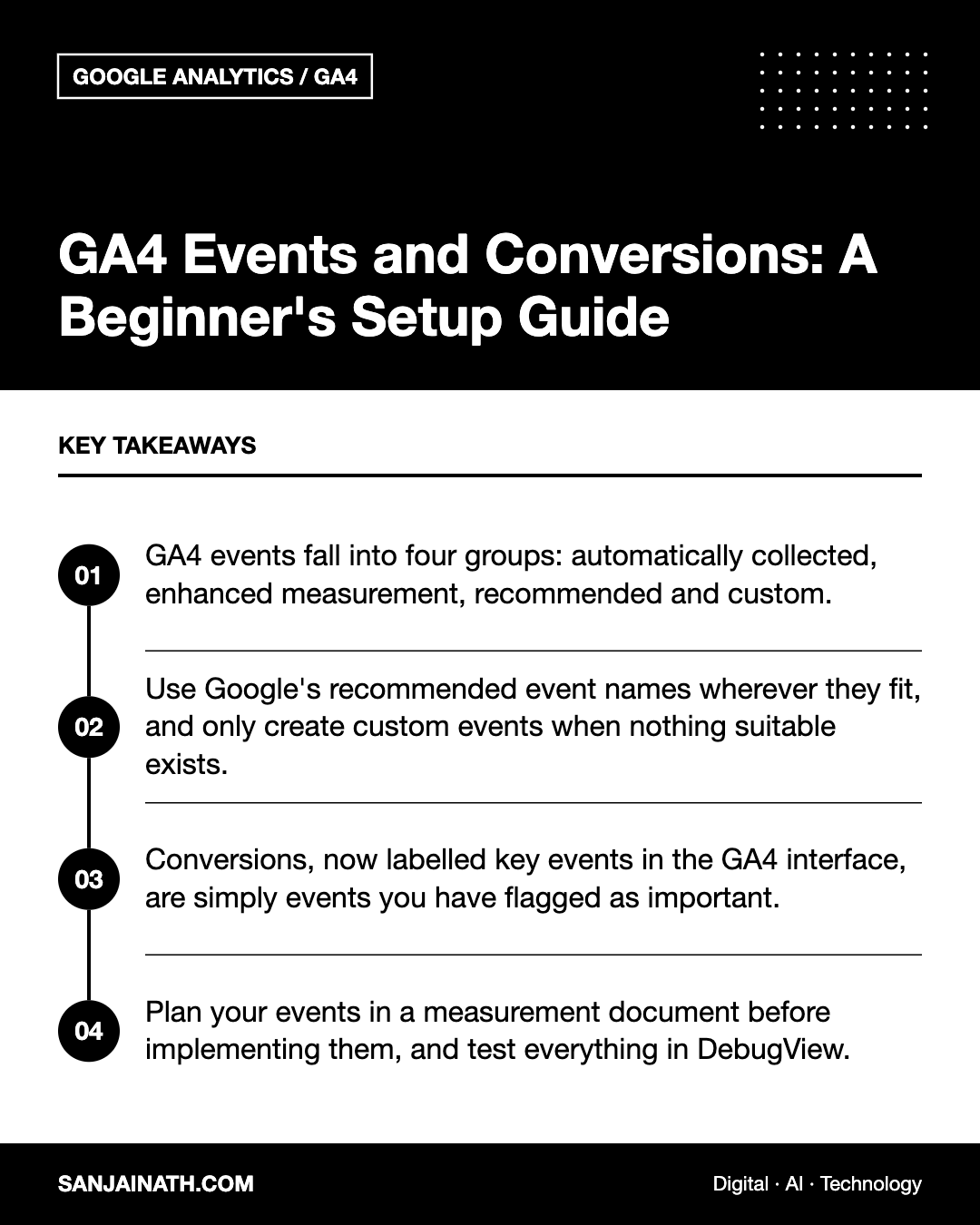
- GA4 events fall into four groups: automatically collected, enhanced measurement, recommended and custom.
- Use Google’s recommended event names wherever they fit, and only create custom events when nothing suitable exists.
- Conversions, now labelled key events in the GA4 interface, are simply events you have flagged as important.
- Plan your events in a measurement document before implementing them, and test everything in DebugView.
How GA4 events work
In older versions of Google Analytics, data was organised into sessions and page views, with a separate category, action and label structure for events. GA4 replaces that with a flexible event model. Each event has a name, such as page_view or generate_lead, and can carry parameters, such as the page location, the form name or the value of a transaction.
Parameters are what make GA4 events useful. A single form_submit event becomes far more insightful when it includes which form was submitted, which page it was on and what type of enquiry it represented. To use custom parameters in standard reports, you generally register them as custom dimensions or metrics in the GA4 admin settings.
The four types of GA4 events
| Type | How it is collected | Examples |
|---|---|---|
| Automatically collected | Sent by default once the GA4 tag is installed | first_visit, session_start, user_engagement |
| Enhanced measurement | Toggled on or off in the data stream settings | page_view, scroll, outbound click, file_download, video engagement, site search |
| Recommended | Implemented by you, using names and parameters Google suggests | generate_lead, sign_up, login, purchase, add_to_cart |
| Custom | Implemented by you, with names you define | whatsapp_click, pricing_calculator_used, brochure_request |
Recommended events are worth prioritising because GA4 and connected tools, such as Google Ads, understand them and can use them in specialised reports, particularly for e-commerce.
Step 1: Plan your measurement strategy
Before touching any tags, decide what you actually need to know. Start with your business goals and work backwards.
- List your objectives. For example, generate qualified leads, sell products online or increase newsletter sign-ups.
- Identify the user actions that indicate progress towards each objective, such as submitting a contact form, clicking a phone number or completing checkout.
- Map each action to an event name. Use a recommended event where one fits; otherwise define a clear custom name in lowercase with underscores.
- Define parameters. Decide what extra detail each event should carry, such as form_name, product_category or value.
- Decide which events are conversions. Only the actions that represent real business value should be flagged.
Record this in a simple spreadsheet or measurement plan. It becomes your single source of truth and makes future troubleshooting far easier.
Step 2: Check enhanced measurement
In GA4, go to the admin area, open your web data stream and review the enhanced measurement settings. These options can track scrolls, outbound clicks, site search, video engagement, file downloads and some form interactions without code.
Enhanced measurement is a quick win, but review it critically. Automatic form tracking, for instance, may not reliably distinguish successful submissions from abandoned attempts on every site, so many teams disable it and implement form tracking deliberately instead.
Step 3: Implement GA4 events with Google Tag Manager
Google Tag Manager is the most flexible way to add recommended and custom GA4 events without editing site code for every change.
A typical setup for tracking a lead form
- Make sure your GA4 configuration, typically via the Google tag, is firing on all pages.
- Create a trigger that fires when the form is successfully submitted. Depending on your site, this might be a thank-you page view, a form submission trigger or a custom data layer event pushed by your developer.
- Create a GA4 event tag using the event name generate_lead.
- Add parameters such as form_name and, if you have one, an estimated value and currency.
- Attach the trigger, save and open Preview mode to test.
Other useful GA4 events to consider
- Click-to-call and WhatsApp clicks, which are especially important for service businesses in the UAE and GCC where many enquiries happen on mobile messaging.
- Booking or demo requests from scheduling tools.
- Key content engagement, such as watching a product video or using a calculator.
- E-commerce funnel steps, including view_item, add_to_cart, begin_checkout and purchase.
Step 4: Test with DebugView
GA4’s DebugView shows events arriving in near real time from devices in debug mode, including those using Tag Manager Preview. Walk through each key journey on your site and confirm that:
- The event fires once, not multiple times.
- The event name is spelled exactly as planned.
- Parameters appear with the expected values.
- The event fires only when it should, such as on a successful submission rather than a button click that fails validation.
Step 5: Mark GA4 events as conversions
Once an event is flowing correctly, flag it as a conversion. In current versions of the GA4 interface, conversions are referred to as key events, and you can mark an event as a key event from the events list or the key events section in admin. The naming and location of these settings have changed over time, so if the menus look different, look for the option to mark an event as important.
If you run Google Ads, you can import these key events as conversions for bidding. Be selective: importing too many low-value actions can cause campaigns to optimise towards the wrong outcomes.
Common mistakes to avoid
- Inconsistent naming, such as Form_Submit, form-submit and formSubmit, which splits data across several events.
- Tracking everything, which clutters reports and makes important signals harder to find.
- Forgetting to register custom parameters, so the detail you collected never appears in reports.
- Sending personal data, such as email addresses or phone numbers, in event parameters, which breaches Google’s policies and privacy regulations.
- Skipping consent configuration where local privacy rules require it.
Frequently asked questions
What are GA4 events?
GA4 events are the individual user interactions that Google Analytics 4 records, such as page views, clicks, scrolls and purchases. Each event has a name and optional parameters that describe it in more detail.
What is the difference between an event and a conversion in GA4?
Every conversion is an event, but not every event is a conversion. A conversion, or key event, is simply an event you have marked as especially important to your business.
Do I need Google Tag Manager to create GA4 events?
No. You can add events directly in your site code or, for simple cases, create events from existing ones inside GA4. Tag Manager is recommended because it makes changes faster and easier to manage.
How long until events appear in GA4 reports?
Events show in DebugView and real-time reports within moments, but standard reports can take a day or so to process fully.
Final thoughts
Setting up GA4 events properly is one of the highest-value analytics tasks you can do. Plan what matters, use recommended names where possible, implement cleanly through Tag Manager, test thoroughly and flag only genuine business outcomes as conversions. With that foundation in place, your reports stop being a collection of numbers and start answering the questions that actually drive decisions.