

WordPress powers business websites of every size, largely because plugins let you add almost any feature without custom development. That flexibility is also a trap: every extra plugin adds code to maintain, potential security exposure and possible slowdowns. This guide covers the essential WordPress plugins most business websites genuinely need, grouped by job, along with a simple framework for choosing and managing them responsibly.
Key takeaways
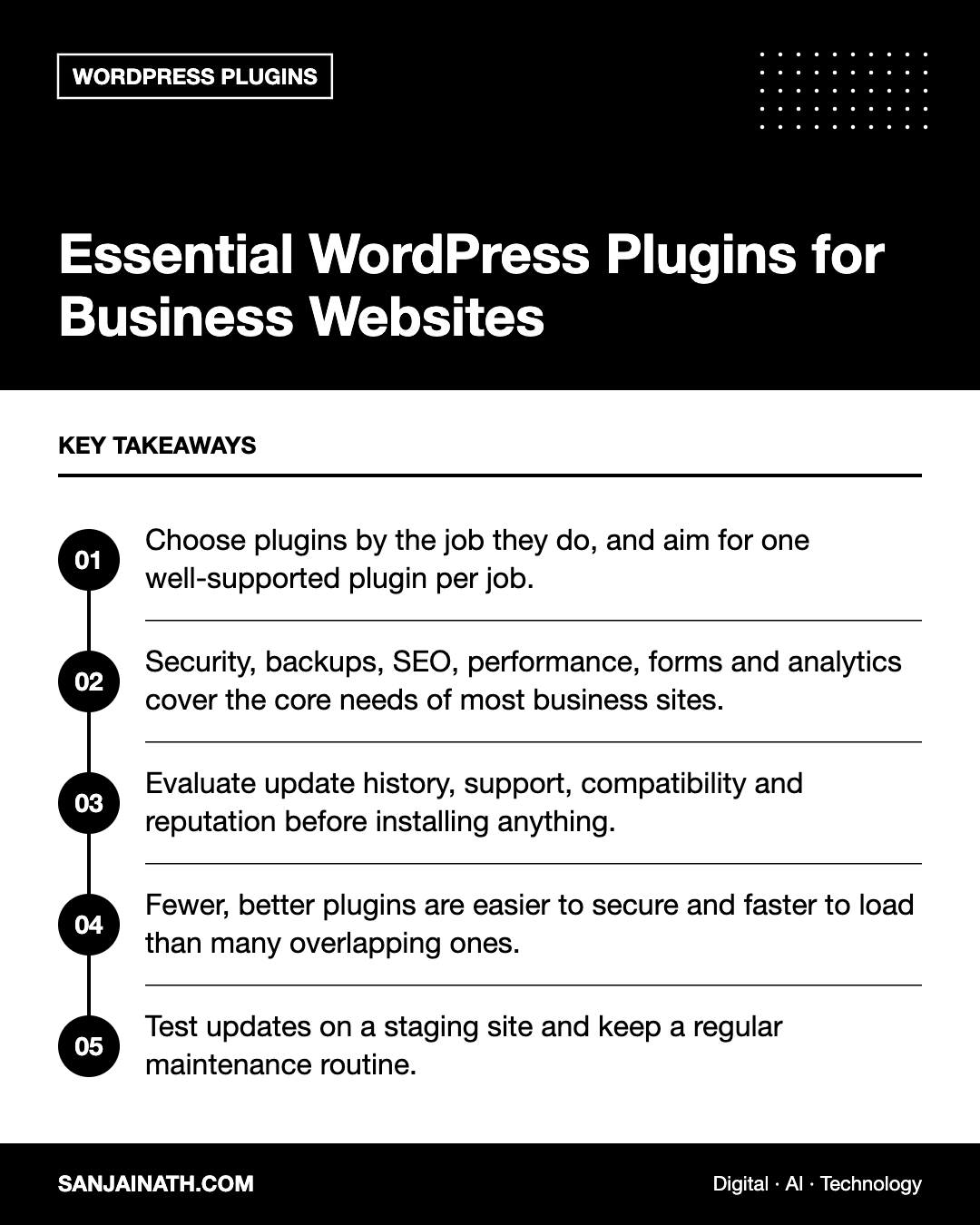
- Choose plugins by the job they do, and aim for one well-supported plugin per job.
- Security, backups, SEO, performance, forms and analytics cover the core needs of most business sites.
- Evaluate update history, support, compatibility and reputation before installing anything.
- Fewer, better plugins are easier to secure and faster to load than many overlapping ones.
- Test updates on a staging site and keep a regular maintenance routine.
How to evaluate any plugin before installing it
Before looking at categories, it helps to have a consistent checklist. The plugins named in this guide are widely used examples, but features and pricing change, so always check current details yourself.
A plugin vetting checklist
- Recent updates: has the plugin been updated recently and tested with current WordPress versions?
- Active installations and reviews: a large, satisfied user base is a reasonable signal of reliability.
- Support quality: are support questions answered, and is documentation clear?
- Developer reputation: is it maintained by an established team or a single inactive author?
- Scope: does it do one job well, or does it bundle features you do not need?
- Performance impact: does it load scripts on every page, even where they are not needed?
- Exit plan: if you remove it, will content or shortcodes break?
Security plugins
Business sites are frequent targets for automated attacks such as password guessing and exploit scanning. A security plugin adds a protective layer on top of good hosting and strong passwords.
- Common features: web application firewall, login protection, two-factor authentication, malware scanning and activity logs.
- Widely used examples: Wordfence, Solid Security and Sucuri’s security plugin.
Some managed hosts provide firewalls and malware scanning at server level. If yours does, a lighter plugin focused on login protection and two-factor authentication may be enough. Avoid running two full security suites at once, as they can conflict.
Backup plugins
Backups are your insurance against hacks, failed updates and human error. Look for automatic scheduled backups stored off-site, such as in cloud storage, plus a straightforward restore process.
- What to look for: scheduled full and database backups, remote storage, easy restores and migration support.
- Widely used examples: UpdraftPlus, BlogVault and Jetpack VaultPress Backup.
Whatever you use, test a restore occasionally. A backup you have never restored is a hope rather than a plan.
SEO plugins
An SEO plugin helps you manage title tags, meta descriptions, XML sitemaps, canonical URLs, structured data and social sharing previews without editing code.
- Widely used examples: Yoast SEO, Rank Math and All in One SEO.
- Tip: choose one and stick with it. Running two SEO plugins can create duplicate meta tags and conflicting sitemaps.
Remember that the plugin is a tool, not a strategy. Useful content, good site structure and technical health still do the heavy lifting.
Performance and caching plugins
Page speed affects user experience, conversions and search visibility. Performance plugins typically handle caching, file minification, lazy loading and image optimisation.
| Job | What it does | Widely used examples |
|---|---|---|
| Page caching | Serves pre-built pages instead of generating each one on request | WP Rocket, W3 Total Cache, LiteSpeed Cache |
| Image optimisation | Compresses images and serves modern formats | Smush, ShortPixel, Imagify |
| Asset management | Stops unnecessary scripts loading on pages that do not need them | Perfmatters, Asset CleanUp |
Check what your host already provides. Some hosts include server-level caching and recommend against additional caching plugins, while LiteSpeed Cache is designed for LiteSpeed servers. Always measure speed before and after changes.
Forms, analytics and compliance plugins
Forms
Contact, quote request and booking forms are how many business sites generate leads. Good form plugins offer spam protection, conditional logic, email notifications and integrations with CRM and email marketing tools. Widely used examples include WPForms, Gravity Forms, Fluent Forms and Contact Form 7.
Analytics
You can add analytics tracking manually or with a plugin such as Google’s Site Kit or MonsterInsights. A plugin makes setup easier for non-developers, while a tag manager offers more flexibility for marketing teams running multiple tools.
Privacy and cookie consent
If you use tracking cookies or serve visitors in regions with privacy laws, a consent management plugin helps you collect and record consent. Businesses in the UAE and wider GCC should also consider local data protection laws alongside any rules that apply to international visitors. Examples include Complianz, CookieYes and Cookiebot.
Other essential WordPress plugins by business type
Depending on your business model, a few additional plugins may earn their place.
- Online stores: WooCommerce, plus a trusted payment gateway extension for your region.
- Multilingual sites: WPML, Polylang or TranslatePress for managing translated content, including Arabic.
- Bookings and appointments: scheduling plugins that sync with calendars and send reminders.
- Email deliverability: an SMTP plugin such as WP Mail SMTP, so form notifications and order emails actually arrive.
- Redirects: a redirection tool to manage changed URLs and avoid broken links after restructuring.
- Spam protection: anti-spam tools such as Akismet for comments and forms.
Managing plugins safely over time
Choosing plugins is only half the job. Managing them well keeps your site secure and fast.
- Keep a plugin register: list each plugin, its purpose, owner and licence renewal date.
- Update regularly: apply security updates promptly and routine updates on a schedule.
- Use staging: test major updates on a copy of the site before applying them to the live site.
- Remove what you do not use: deactivated plugins can still pose risks, so delete them.
- Review quarterly: check whether each plugin is still needed and still maintained.
Frequently asked questions
How many plugins is too many?
There is no magic number. Quality matters more than quantity: a site with many lightweight, well-coded plugins can be faster than one with a few heavy ones. Focus on removing overlap and anything you do not actively use.
Are free plugins safe to use?
Many free plugins are excellent and well maintained. Safety depends on the developer’s track record and update frequency, not the price. Apply the same vetting checklist to free and paid options.
What are the most essential WordPress plugins for a new business site?
Most new sites benefit from a security plugin, a backup solution, an SEO plugin, a form builder and a caching or performance tool, unless your host already covers some of these at server level.
Should I buy premium versions?
Premium versions often add priority support and advanced features. Upgrade when the extra features solve a real business need or when reliable support would save you time.
Final thoughts
The essential WordPress plugins for your business are the ones that solve clear problems, come from reliable developers and are actively maintained. Start with the core categories, avoid overlapping tools, vet everything before installing and follow a steady maintenance routine. A lean, well-managed plugin stack keeps your website secure, fast and ready to grow.